

What needs to be ready?
A well-planned move starts with an inventory of the existing website and clear responsibilities. Map the content and URLs, test email, forms, integrations and tracking, and decide how to protect data during the switch. Complete testing and backups before launch, then keep checking enquiries, errors and search performance afterwards.
A client recently told me someone had warned her that replacing an existing website takes more than building the new one. Whoever handles the project needs to know how to manage the move and the redirects. I think that conversation belongs at the very beginning of the project.
When you plan a new website, it is natural to focus on the design, the pages and everything you want to improve. But the existing site already does things for the business. People read its content, customers have links to its pages, and forms bring in enquiries. There may also be orders, user accounts and connections to other systems. You need to decide what happens to all of that during the move.
When I build websites for home service businesses, for example, I want to understand how their service pages, quote forms and booking tools work before changing the structure. The new site should suit the business as it is today, while keeping the useful parts of the existing site working.
Redirects matter because they help someone following an old link reach the right place on the new site. There is more to check, though: whether email still works, whether an enquiry reaches the right person, whether the content has been transferred properly, and whether the owner knows how to use the website they have received.
If you are still deciding whether to replace your site, start with my article on upgrading a website or rebuilding it. Here, I will focus on what happens once you decide to go ahead: planning the move, checking the site before launch and following up afterwards.
Start by defining what is changing
A rebuild can use the same platform and the same domain. You might also change the content management system, move to a different hosting provider, reorganise the pages or choose a new domain. Each change has different implications, and they do not all have to happen together.
For example, a website can get a completely new design and content structure while keeping the exact same URLs for its service pages. Those pages do not need new redirects simply because the design has changed. If a URL does change, you need a plan for people arriving through the previous address.
Moving hosting alone does not require new URLs either. Google’s guidance on hosting changes covers that situation separately from a move that changes page addresses.
Write down what is changing and what is staying at the start of the project. If you also want to change the domain, rewrite all the content and switch platforms, consider how those changes depend on each other. It will also be harder to work out which change caused a particular result later. I prefer every change to have a clear reason connected to what the business needs.
Who is responsible for the move, and what access do they need?
Before the work starts, agree on who is coordinating it. Sometimes the website developer handles the whole move. Other projects involve an SEO specialist, a hosting company, an email provider and the person managing the advertising. Everyone needs to know what they are doing and when, with one person keeping track of the whole process.
The proposal should explain what is included: transferring content, handling URLs and redirects, connecting forms and other systems, setting up tracking, testing after launch and training. If something remains the responsibility of the owner or another supplier, identify it early and allow time for it.
Domains, hosting and business accounts
Check access to the domain, its DNS settings, the hosting and the website administration. Then go through the accounts the site uses, such as Google Analytics, Search Console, an email marketing platform, an email delivery service, a payment provider or an appointment calendar.
I want the business owner to have access to the key accounts that belong to the business, with current recovery details. People working on the project should receive the permissions they need. Keep passwords out of open group chats and arrange access securely.
Check licences and creative assets too. Can the photos, fonts and plugins continue to be used on the new site? Does a licence belong to the previous supplier? What will stop receiving updates when that relationship ends? These details affect both the move and the ongoing maintenance.
Arrange the handover of files and access while the previous provider’s service is still active. Closing that account comes after you understand what still depends on it.
What is worth keeping from the old website?
Next, make an inventory of what exists. The menu is only part of the picture. There may be older articles, landing pages, downloads and pages outside the navigation that people still visit.
A site crawl, the content management system, the sitemap and search and analytics data can help. Add URLs used in campaigns, newsletters, proposals and printed materials. A QR code on a business card, for example, continues to point to the same address after you replace the website.
For each important page, ask what it does. Does it explain a main service, bring in enquiries, answer a customer question or receive links from other websites? Data helps, but visitor numbers do not show all of a page’s value. A page with little traffic may still play an important part in conversations with potential customers.
Before the move, save a record of current activity: visits to key pages, search impressions and clicks, and enquiries or purchases where tracking makes that possible. If tracking is incomplete, note that. Missing data is not evidence that nobody uses a page.
What should you transfer, rewrite or combine?
A new website is a good opportunity to review the material. Service details that have changed need updating, strong projects deserve space, and useful content can move with you into a different design.
Suppose the current site has one page explaining a service and two articles answering different questions about it. Before combining them, check whether readers will still be able to find the explanation they came for. Wanting fewer pages does not mean all the content belongs in one place.
Shortening copy also calls for a proper read. A paragraph might be removed to make a layout cleaner, taking an important explanation about service areas, suitability or pricing with it. I prefer to understand what the paragraph gives the reader first, then find the right wording and place for it.
When transferring content, check original images, downloads, captions, author details and dates. An image can look fine on the new site while still loading from the old hosting account. Close that account and it may disappear. Make sure the actual files have been transferred and their links updated.
How do you plan URLs and redirects?
Once you know what belongs on the new site, map the old pages to the new ones. Every old URL needs a clear decision: it stays, moves to a new address, joins other content or is removed.
A permanent page move will usually use a server-side 301 redirect. Google also recognises 308 as a permanent redirect. For the visitor, the important result is that an old link still takes them to the relevant content. Google’s redirect documentation explains the difference between permanent and temporary redirects.
Choosing the destination matters just as much as setting up the redirect. Here are a few examples:
- A garden design service page gets a new URL: redirect to the new page for that service.
- Two guides become one guide covering both subjects: check whether the combined guide is a suitable destination for each.
- A service has ended with no relevant replacement: decide whether visitors still need a page explaining that, or whether the URL should return a 404 or 410 status to show that the content is unavailable.
- An updated PDF catalogue replaces an older one: handle the file link too, especially if customers have already received it.
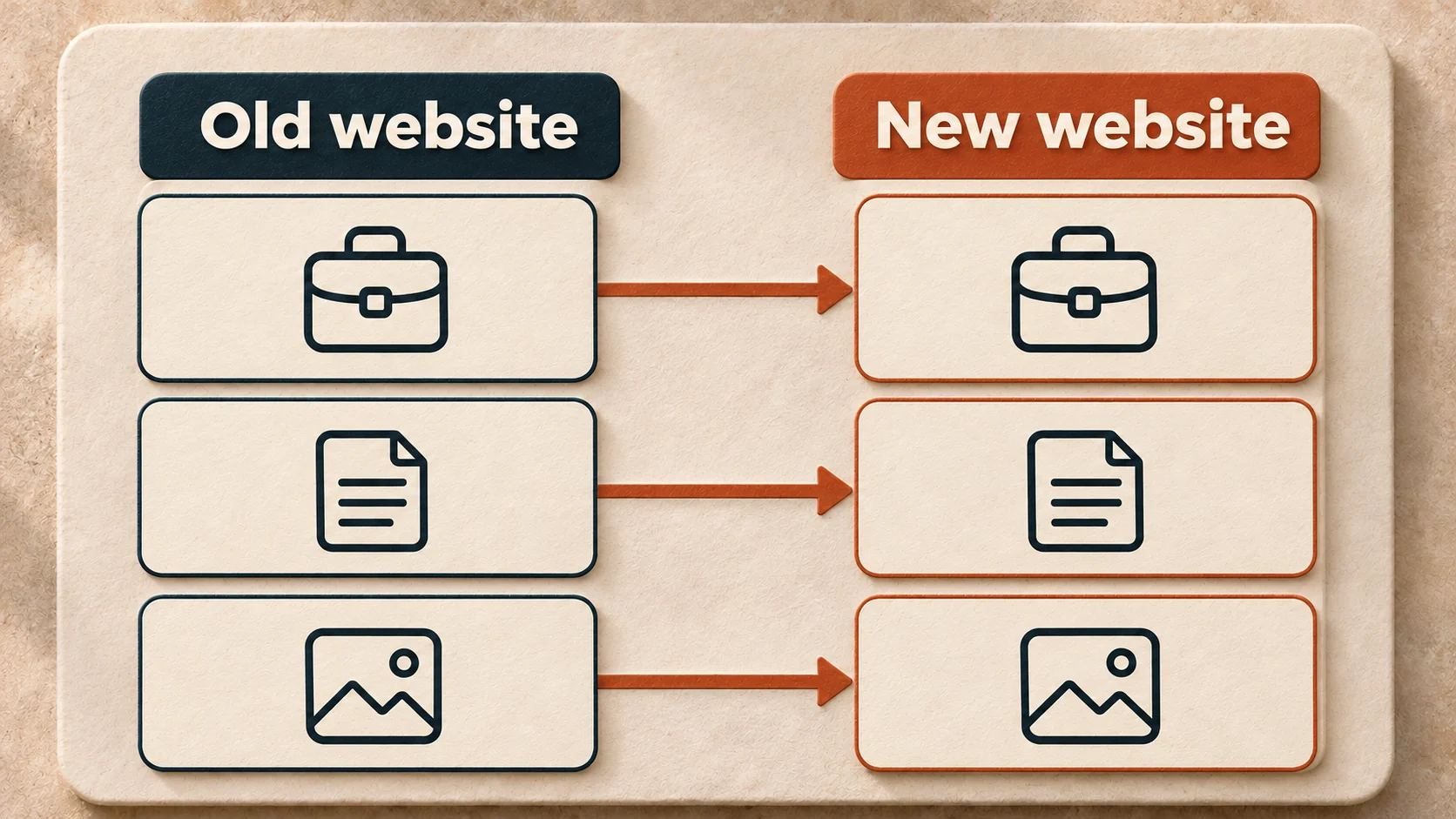
Redirecting every old URL to the homepage can leave someone who wanted specific information without an answer. Google warns that irrelevant redirects like these may be treated as soft 404s, meaning the content is considered missing despite the redirect. See its guidance on moves that change URLs.
Test the redirect list once it is in place. Does each old address reach the intended page? Does that page load? Are there loops or unnecessary steps through other URLs? Include redirects from earlier site moves so they do not disappear with the old system.
Update links within the new site to point directly to the new addresses. That includes buttons, menus, links inside articles and linked images. Old links arriving from outside the site still need to work.
What else helps search engines understand the new site?
Each page has settings that are not always visible in the design: a title and description for search results, headings within the content, and settings that allow or prevent indexing. Check that these suit the new page and have not been lost while changing the platform or theme.
Another setting, called a canonical, identifies the preferred URL for a page. Check that it points to the right address and that the sitemap and internal links use the same version. A live page should not accidentally point to the temporary address used during development. Google’s canonical URL guidance explains how these signals work.
If the site includes structured data for the business, articles or products, check that the details and URLs are current and match the visible content. This information is added in code to help describe the content to search engines. Google’s structured data guidelines also cover that connection to what visitors can see.
On a multilingual website, check that each page connects to its equivalent in the other language, both in the language menu and in the settings for search engines. A language link that sends every English article to the Hebrew homepage, for example, makes it harder to read the same information in another language.
When changing domains, Search Console has a Change of Address tool to use after the move and redirects, subject to the tool’s requirements. It is not for rebuilding on the same domain or changing internal page URLs alone. Google explains when to use Change of Address.
What happens to email and other services using the domain?
A domain can serve the website, business email and other services at the same time. Before changing its settings, find out what each one is doing.
DNS directs the domain to the relevant services. Some records relate to the website, while others handle email delivery or verification for connected services. Moving a website does not necessarily mean moving the mailboxes, but the records that keep them working still need to be preserved.
If you change DNS providers, verify that all the required records exist with the new provider. Even an automatic scan can miss records, as Cloudflare’s documentation explains. Whoever handles the move needs to review the existing configuration and confirm what the business still needs.
If the mailboxes themselves are hosted on an account you plan to close, arrange their transfer separately, including messages and folders. Afterwards, test sending and receiving with an external email address. Test messages sent by the website as well, because these can use a different connection.
Forms, integrations and the data the business relies on
I want to check what happens after the customer clicks. Is the enquiry saved? Who gets notified? Does it reach the customer management system? Does the person receive the confirmation they were promised? A success message on the screen only answers part of that.
Go through every type of submission: a general enquiry, a quote request, a newsletter signup, a job application or a form with an attachment. Test valid submissions as well as missing information and errors. The person who handles enquiries should take part and confirm that the information arrives in a usable form.
For appointment booking, test availability, time zones, confirmations and cancellations. If the site connects to another system, make sure it uses the right business account and has not been left connected to a test account. Include scheduled actions, such as reminders and follow-up messages, in the checks.
Some information is worth transferring or archiving even if it is not displayed on the website: previous enquiries, mailing lists and subscription records, for example. Before replacing a system, find out what can be exported, where it will go and who needs access.

Stores and websites with user accounts need extra planning
For a store, review products and their variations, prices, stock, customers and orders. Check coupons, shipping, tax calculations, invoices, downloads and customer accounts as relevant to the store. A course or membership site also needs checks for content access, progress and billing dates.
When changing platforms, data does not always transfer in the same way. Customers may need to reset their passwords, and saved payment details or subscriptions may need work with the payment provider. Confirm what is possible before promising customers that everything will continue exactly as before.
An order placed while the new website is being built must be included in the migration plan. A copy of the store from a month ago does not contain the sales made since then. Decide how the latest changes will be transferred, whether orders need to pause briefly, and when they can resume.
A plan to return to the old site must also protect transactions that have already happened. Restoring an older backup can roll back the store’s data too. WooCommerce’s documentation on restoring sites with subscriptions describes the risks, including orders and payments made after the backup.
How do you test the new website before replacing the old one?
Build and test the new site in a separate staging environment while the current one continues to work. This gives everyone a place to read, comment and try things without sending every change straight to customers.
Protect that environment against unauthorised access, especially if it contains a copy of customer information. Also prevent it from appearing in search. The noindex setting asks search engines to leave a page out of results, but it is not password protection. Blocking a URL in robots.txt alone does not guarantee it will stay out of search either. See Google’s explanation of noindex.
Keep testing separate from real business activity. Do not charge customers, accidentally email them or trigger subscription renewals from the copy. Set up the appropriate testing mode for each connected system.
Test the journeys people will actually take
I start with things like finding a service, reading a project and making contact. In a store, that might mean choosing a size, adding an item to the basket and buying it. Check the starting point, the steps along the way and the result at the end.
Use a real phone, a computer and the relevant browsers. Test while logged out of the website administration too. A site can look fine to its editor while an ordinary visitor gets a different version or runs into a permissions problem.
Include the menu, site search if there is one, filtering, downloads, videos, phone and WhatsApp links, page sharing and a useful 404 page. Check error messages and what happens after a form submission. A thank-you page should follow the right action and explain what happens next.
The owner should try editing the site as well. Can they update a service, change a photo, add a project and find an enquiry? That may reveal a need for training or a change to the administration screens while there is still time to address it within the project.
Accessibility, loading and business details
A new design needs a fresh accessibility review. Initial checks can cover keyboard navigation, text readability, contrast, zooming, form labels and error messages. A quick check or automated tool is not a complete accessibility assessment. W3C’s preliminary checks explain what can be checked initially and what needs a fuller evaluation.
For loading performance, look at different pages, especially those with images, videos or third-party components. Check when the page becomes usable and whether content shifts while loading. A fast homepage does not tell you how a project page with a large gallery behaves.
Review the business name, phone numbers, addresses, opening hours and social links. If the rebuild introduces external services, forms or new ways of collecting information, review the privacy policy, accessibility statement and relevant terms too. An old document may no longer describe the updated site accurately.
Tracking and advertising need to move with the website
To understand what the new website changes, you need continuity in the measurement. Confirm that it connects to the correct accounts and that important actions are still tracked. Rebuilding a site is not, by itself, a reason to open a new Analytics account and break the connection with earlier data.
Make a controlled test enquiry or purchase and check what is recorded. Is the event sent at the right moment? Is it counted twice because two integrations send it? For a store, are the order ID, amount and currency correct? Run these checks in line with the site’s consent and privacy settings.
Google Tag Assistant and DebugView can help show which events are being sent during testing. Google Analytics’ troubleshooting guide explains the testing tools and the difference between real-time visibility and processing in reports.
Alongside tracking, review the ads and links that bring people to the website. A new landing page should match what the ad promises, and the link should arrive with the required tracking information. If advertising uses a product feed, check the product URLs and the information sent in that feed as well.
Record the launch date and any significant changes to tracking or campaigns. If enquiry numbers look different later, you will be better placed to work out whether business activity changed, the measurement changed, or both.
What happens on launch day?
Choose a time that suits the business and the people who can deal with a problem. A site taking orders around the clock needs a different plan from a small business information site. Even if evenings are quieter, make sure the people you need are available then.
Before switching over, take a current backup of the files and database and keep it somewhere accessible even if the hosting is unavailable. Know how to restore it and exactly what that restoration would bring back. For an active store or site, also decide how to preserve data created after the backup.
Finish transferring the latest updates, then switch over according to the plan. Once the website is available at its real address, test the main actions again: opening pages, following redirects, making contact and, where relevant, ordering or booking an appointment.
Check that the security certificate works, integrations use the live site’s addresses, and no images or files still depend on the staging address. If caching is in use, make sure visitors receive the correct version.
Remove staging restrictions from the public pages of the live site. Confirm that search engines can access them and that they have not accidentally been marked for exclusion from search. Private pages and pages that should not be indexed keep the settings appropriate to them.
If you are changing hosting, do not shut down the previous server immediately. DNS changes may not reach everyone at the same moment. Confirm that the move has completed and that activity is no longer reaching the old location.
What should you keep checking after launch?
In the first few days, confirm that the website receives enquiries and that they actually reach the business. Ask the people replying to customers whether anything has changed. Are details missing? Are messages going to spam? Are customers struggling to find something familiar?
Keep monitoring errors, missing pages and redirects, and submit an updated sitemap in Search Console. Check important pages in search and compare results with the baseline you saved, allowing for weekdays, seasonality and advertising changes.
Search visibility can fluctuate after a move that changes URLs or content. Nobody can guarantee every ranking will remain exactly as it was. Equally, a drop should not automatically be dismissed as part of the move. Check for technical issues, missing content and changes to how activity is measured.
When a report shows fewer enquiries, I first want to know whether the business actually received fewer enquiries or whether tracking stopped working properly. If one page gets fewer visits, check whether it now has a new URL and the activity is being recorded there.
When can you close what is left of the old website?
Before cancelling hosting or another service, make sure it does not still hold email, files, backups or active integrations you need. The decision depends on what remains with that provider and what the migration checks have confirmed.
Redirects have a separate lifespan. In its site move guidance, Google recommends keeping them for as long as possible, generally at least a year. Links customers continue to use may be worth maintaining for longer. If you changed domains, you need to retain the old domain and the infrastructure that serves its redirects, including a valid security certificate for HTTPS URLs.
At handover, ask for documentation of accounts, redirects, integrations and backups, along with training. Agree who updates the website, who handles problems and what support is included after launch. The owner needs to know who to call a month later, when the new design has become part of everyday work.
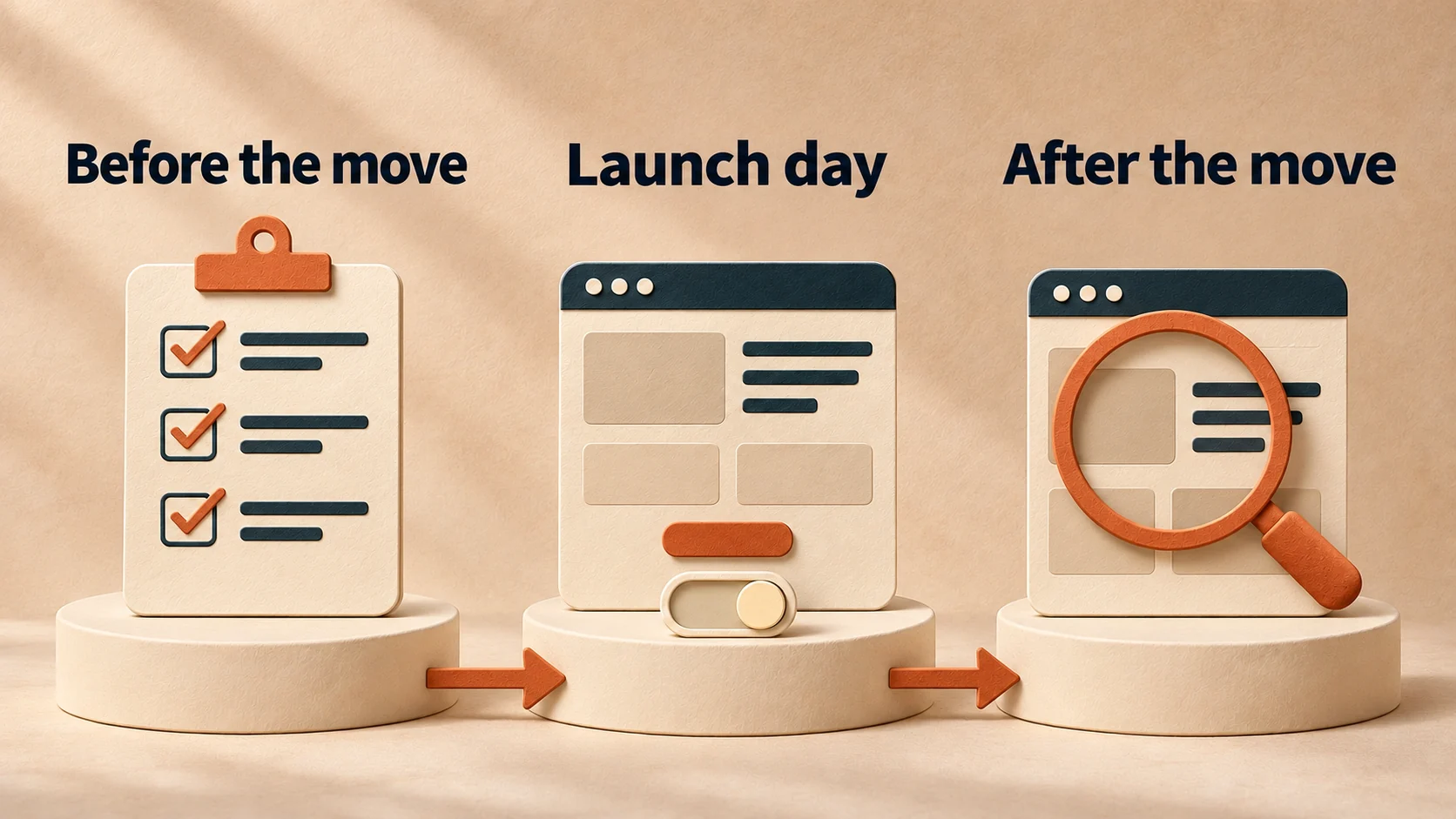
A checklist for the business owner
You are not expected to perform every technical check yourself. Use this list to review the outstanding work with the person managing the project. Next to each item, note who is responsible and what still needs to happen.
Before the build starts
- We have defined what is changing in the platform, hosting, domain and URLs, and why.
- Someone is responsible for the move, with a clear list of what the work includes.
- We have checked account access, ownership of assets and dependencies on providers and licences.
- We have listed the pages, files, integrations and data to transfer, and saved activity data for comparison.
Before launch
- We have read the new content and checked that customers are not losing important information.
- Every old URL has a plan, and destinations and redirects have been tested.
- Usability, accessibility and loading checks appropriate to the site are complete, including on mobile.
- Forms, email, connected systems and tracking have been tested through to the result received by the business.
- For a store or site with users, we have planned for new data and activity during the move.
- We have a backup, a recovery plan and a launch time when the necessary people are available.
After launch
- We have repeated the main actions on the live domain and checked the search settings.
- Links in campaigns and other places managed by the business have been updated.
- We have agreed who will monitor enquiries, purchases, search data and errors, and when.
- There is a clear plan for closing old services, maintaining redirects and ongoing maintenance.
Start with the website you already have
That conversation with my client reminded me why the move deserves attention from the first discussion about a new website. You can look forward to the design and new possibilities while taking proper care of the things that already serve the business.
If you are planning to replace your site, send me the link and tell me what you would like to change. We can look at what is worth keeping, what needs work and what should be prepared for a well-managed move.
Frequently asked questions
Does a new website need a new domain?
No. You can build a new website and keep the existing domain. Changing the platform or hosting does not require a new domain either. If there is a business reason to change it, such as a new name, plan the URL migration and update the related links and accounts too.
Do I need redirects if I keep the same domain?
Yes, if page URLs change. The domain can stay the same while a service page or article gets a different address. If the URL and relevant content remain available in the same place, the rebuild alone does not require a new redirect. Keep any existing redirects that are still needed.
What should happen to an old page I do not want on the new site?
First, check what it contained and whether it still has a purpose. If the content moved or was combined with suitable content, redirect to that destination. If it was removed without a replacement, the URL can return a 404 or 410 status and show a page that helps visitors continue. There is no need to send people somewhere unrelated just to avoid a missing URL.
Can the move affect my Google rankings?
Yes. Changes to content, structure and URLs can affect search visibility, as can problems accessing pages. Planning and testing help reduce risk and identify issues. Even a carefully managed move cannot guarantee there will be no fluctuations, which is why monitoring continues after launch.
Does the old website have to go offline while the new one is built?
Usually, the new site can be built and tested separately while the old one stays available. The actual switch may need a maintenance window, especially if orders or other data need to be synchronised. Decide whether a pause is necessary and estimate its length based on the system and activity. Let customers know if it affects the service.
Does business email move automatically with the website?
Not necessarily. The website and email may use different providers. Find out where the mailboxes are hosted and preserve the settings they need. If you are also changing email services, transfer the mailboxes and data through an appropriate process, and test sending and receiving before cancelling the previous service.
How long should I keep the old website?
Treat the backup, old hosting and redirects as separate decisions. Keep backups according to the business's needs and the information they contain. Hosting can be cancelled once you have confirmed it is no longer required. Redirects should continue according to the migration plan and the links people use. Keeping them does not require the whole old website to remain publicly accessible.
What should I ask the person building my website?
Ask for a plan based on what your business actually has: content, URLs, email, data and integrations. Find out who owns each part of the work, which checks will be performed and what support follows launch. At handover, you should receive access to the appropriate accounts, documentation and enough training to keep working with the site.